
GPT Image 2

Create layouts, storyboards and interface concepts.

20credits / image

Core capabilities and creative approaches

Turn a content list into a focused visual layout

Once you know what an image should contain, decide how readers should see it. GPT Image 2 can arrange a headline, key points and a main subject, using sections, scale and spacing to express priority. For information cards, presentations or campaign visuals, provide the content list first and assign each item a place in the composition.
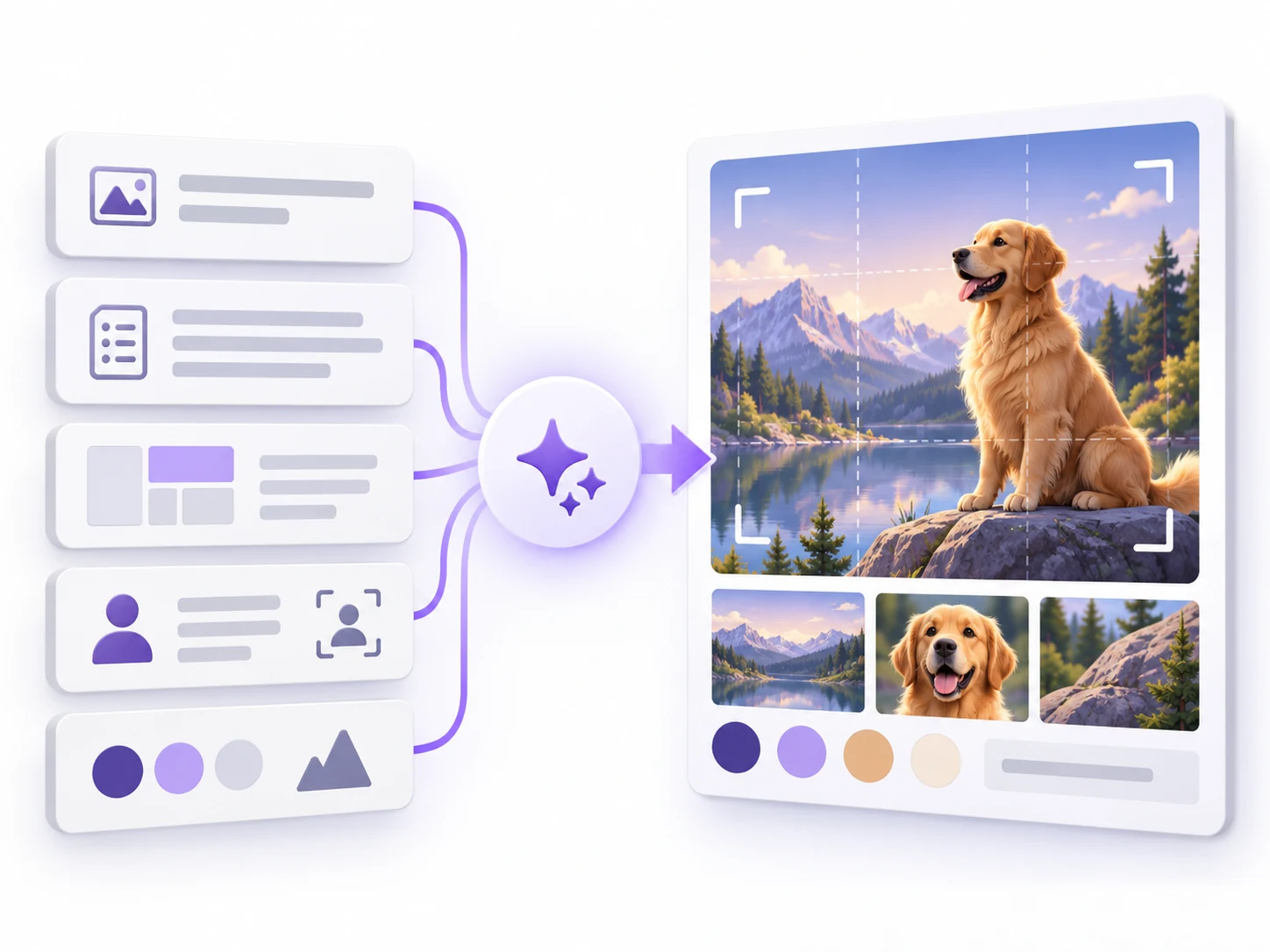
Subject, brief, layout and palette cards combined into a structured visual concept.

How to prompt it

Supply a headline, three key points and a main illustration. Put the headline above, the illustration centrally and the points in three equal sections below, read from left to right.
Tell a story through ordered panels

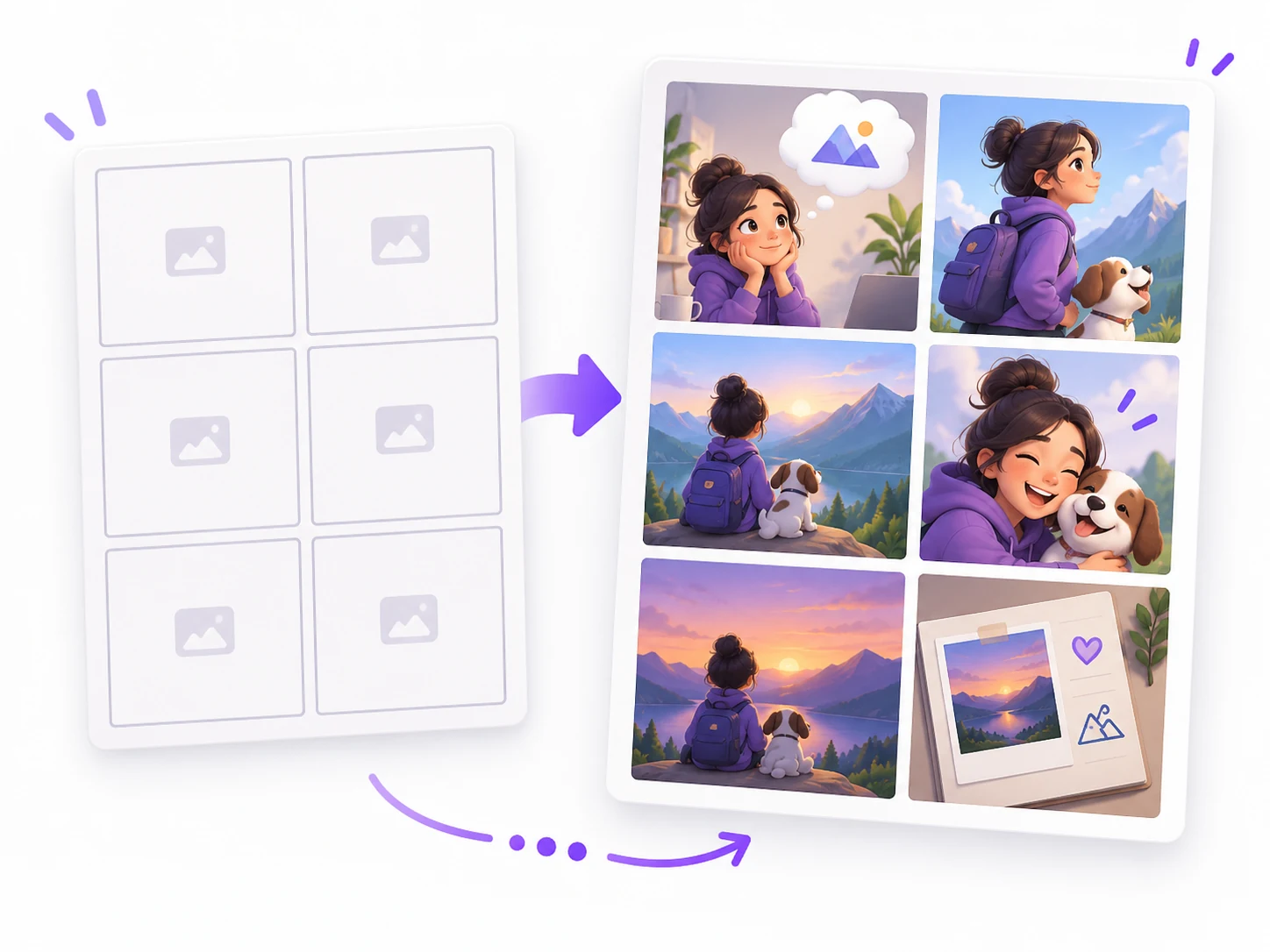
A storyboard needs each panel to serve a purpose and connect with the next. GPT Image 2 can organize subjects, actions and scene changes from panel-by-panel instructions. Set the panel count and reading direction, describe what happens in each, then define shared character appearance and color treatment.

An empty six-panel storyboard becoming a coherent travel story featuring one character and a dog.

How to prompt it

Describe four panels read from left to right, with one key action per panel. Include the character's clothing, scene changes and camera relationships to preserve.

Sketch a product idea as a static interface

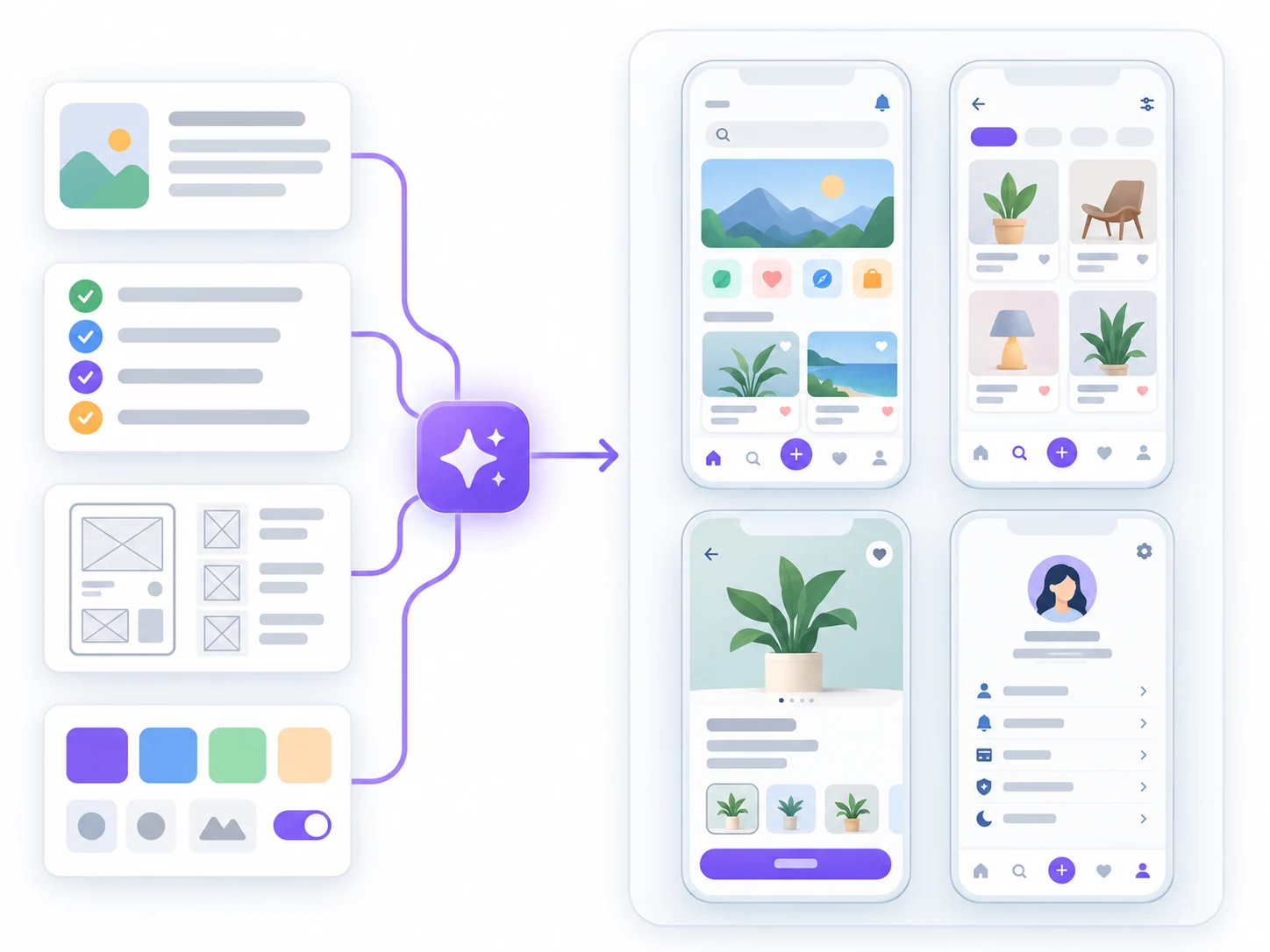
A picture can help a team discuss an interface's structure and visual direction. GPT Image 2 can explore navigation, cards, buttons and content regions for a website or app concept. Specify the screen ratio, primary action and content hierarchy so the sketch supports a concrete product discussion.

Requirements, wireframes and palette inputs becoming four static mobile app screen concepts.

How to prompt it

Choose a desktop or mobile frame, list navigation and content regions, then define palette, spacing and the location of the primary action.

Is this model a fit for your task?

When to try this model

Use it for explainers, presentation visuals, storyboards and interface sketches with clearly defined content. A written breakdown of what to include and in which order is a practical starting point for GPT Image 2.

What to consider

Review lettering, character appearance and continuity between panels. Interface concepts are static images; interactions and code require separate work. Dense tables and exact typesetting may also need adjustment during final production.

ImageWish

Try GPT Image 2 for free on ImageWish

Sign up for ImageWish for free to receive a one-time gift of 100 credits. Verify your email to use these credits to try GPT Image 2 for free. No credit card is required.

A 1K image with GPT Image 2 currently costs 20 credits. If you use the entire signup gift for this setting, it covers up to 5 images. Choose your output settings in the workspace and check the credit cost before generating.

The signup gift is shared across all supported models and is granted once per new account. When your credits run out, you can buy a one-time ImageWish credit package as needed, with no subscription or automatic renewal.

Text and reference images
Start with text, or add up to 5 JPEG, PNG or WebP references in the workspace. Describe what to preserve and change.
Multiple aspect ratios
1:1 · 2:3 · 3:2 · 3:4 · 4:3 · 9:16 · 16:9
Your creation flow
Choose settings, check the credit cost and generate one image. Follow progress in history, then view and download the result. You can switch models in the same workspace.

Resolution and credit cost

Resolution and credit cost
ResolutionCredits per image
1K20
2K30
4K50

Each generation creates one image. Choose a resolution in the workspace and check the credit cost before you generate. Higher resolution uses more credits; completed images are saved in your generation history.

View ImageWish credit packages

Frequently asked questions

Can I use a generated interface as a working website or app?

The result is a static image for discussing layout and visual direction. Buttons, interactions, responsive behavior and code still need design and development.

How can I keep several panels in the right story order?

Specify the panel count, reading direction and event in each panel. Repeat key character details. Start with a few panels, then review actions, wording and scene continuity.

Make it your own

Start with your idea. GPT Image 2 will be selected in the workspace.

Start creating

Explore another model